How to View Image Metadata Online
View image metadata online: read the EXIF report field by field, from camera and lens to timestamps and GPS, right in your browser. Nothing uploaded.
Open the metadata viewerA used-camera listing shows a sample photo. A marketplace seller claims the item was "shot last week". A client asks whether a file really came off your camera. The photo's side of the story is already inside it: an EXIF block recording the device, the lens, the exposure, the capture date, and, when GPS was on, the coordinates. Reading it takes a minute and settles most of those arguments.
The AmiIMG metadata viewer lays the whole block out in grouped rows — Camera, Settings, Location, plus a collapsible list of everything else. Drop in one JPG, PNG, or WebP and the report appears beside the photo; parsing runs on your device and the file never leaves it. A one-click clean copy is there too, for after you've read what you'd rather not share.
Reading the report, step by step
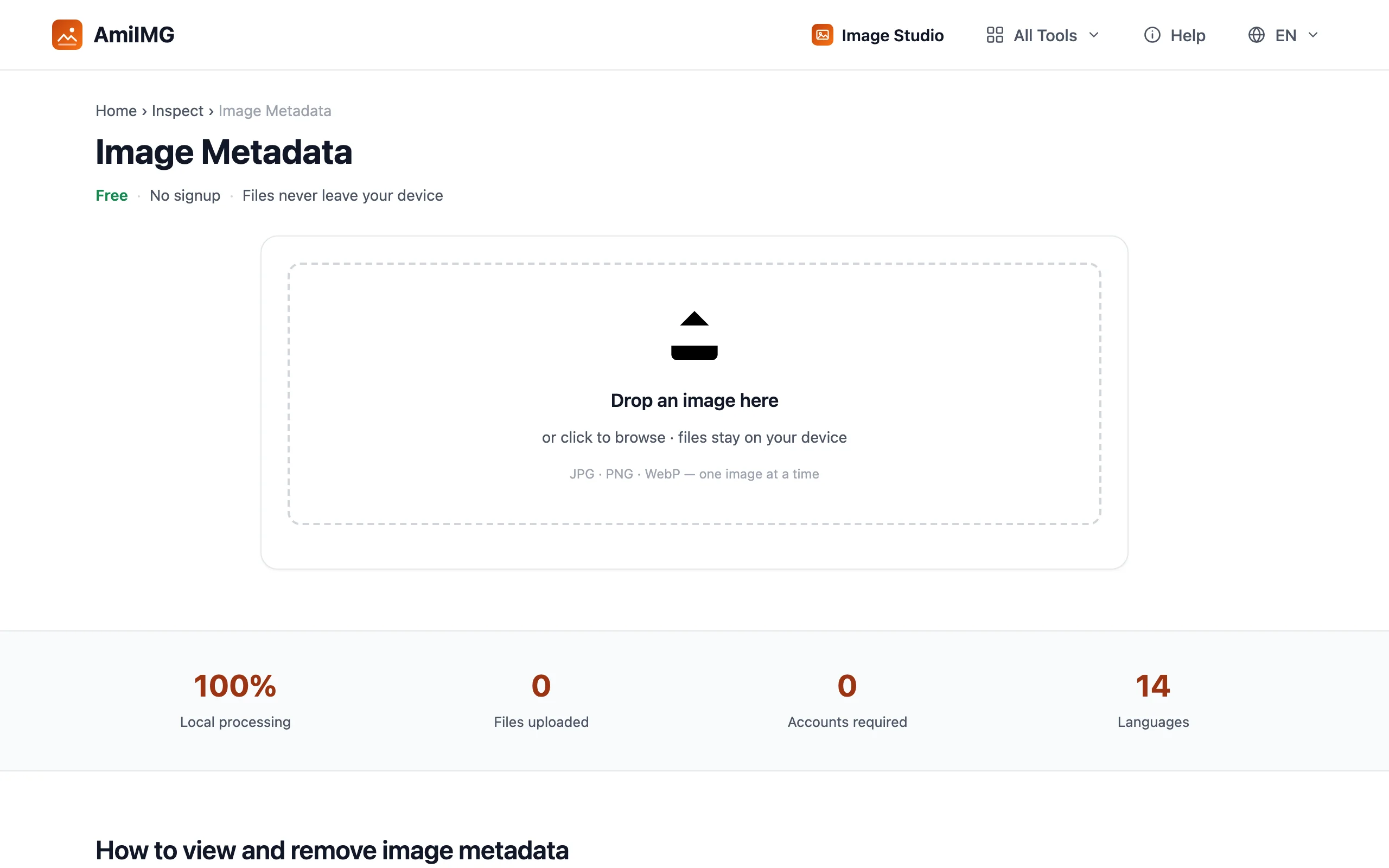
Drop the file on the zone
The viewer takes a single image (JPG, PNG, or WebP), which keeps every row in the report attached to exactly one file. The panel opens beside the thumbnail the moment the drop lands.
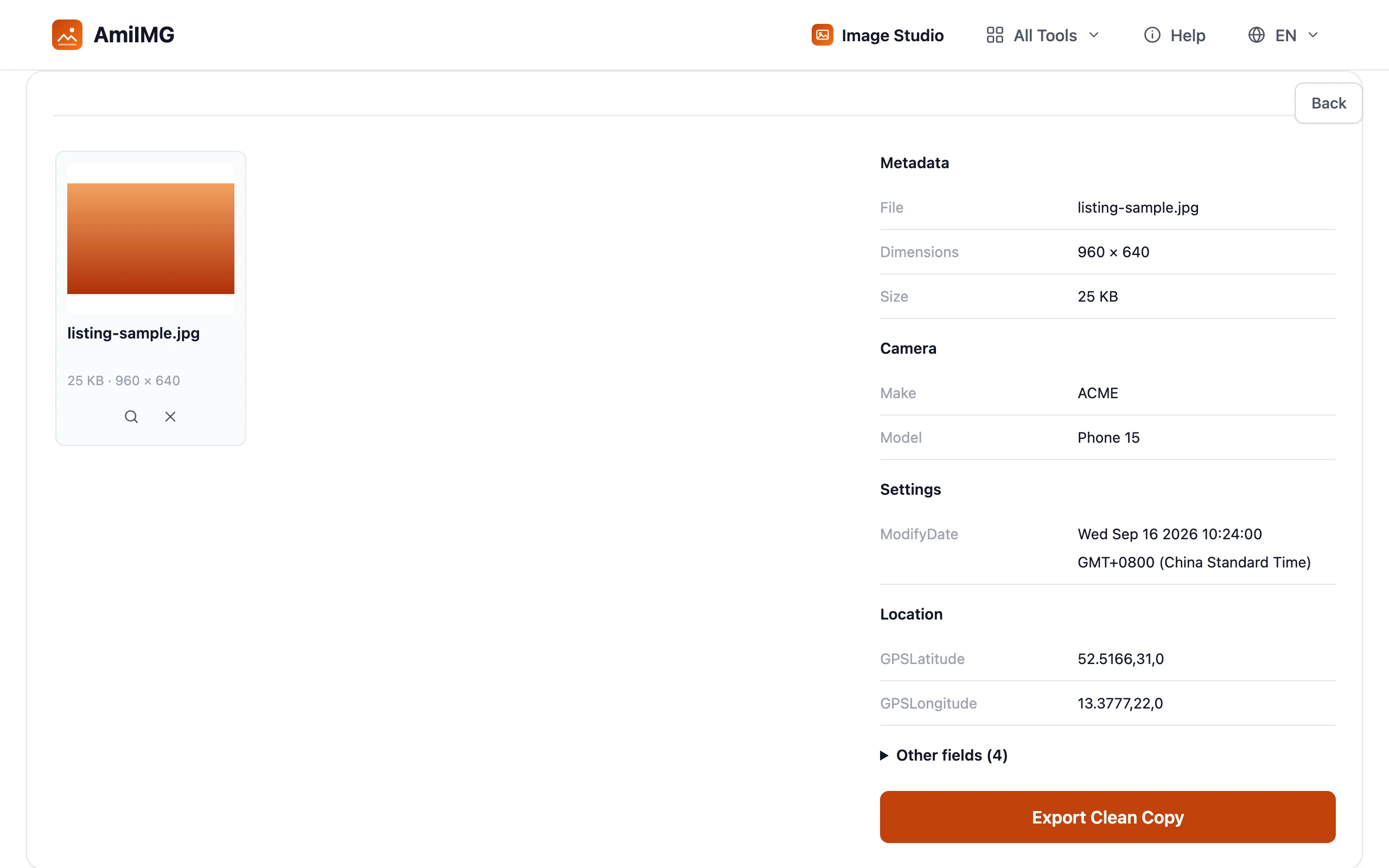
Walk the Camera and Settings groups
File name, dimensions, and size sit at the top. Camera holds the maker, model, and lens as the manufacturer wrote them, sometimes down to the body serial number. Settings is the shot's recipe: focal length, aperture, exposure time, ISO, plus orientation, editing software, and the original and modified dates.
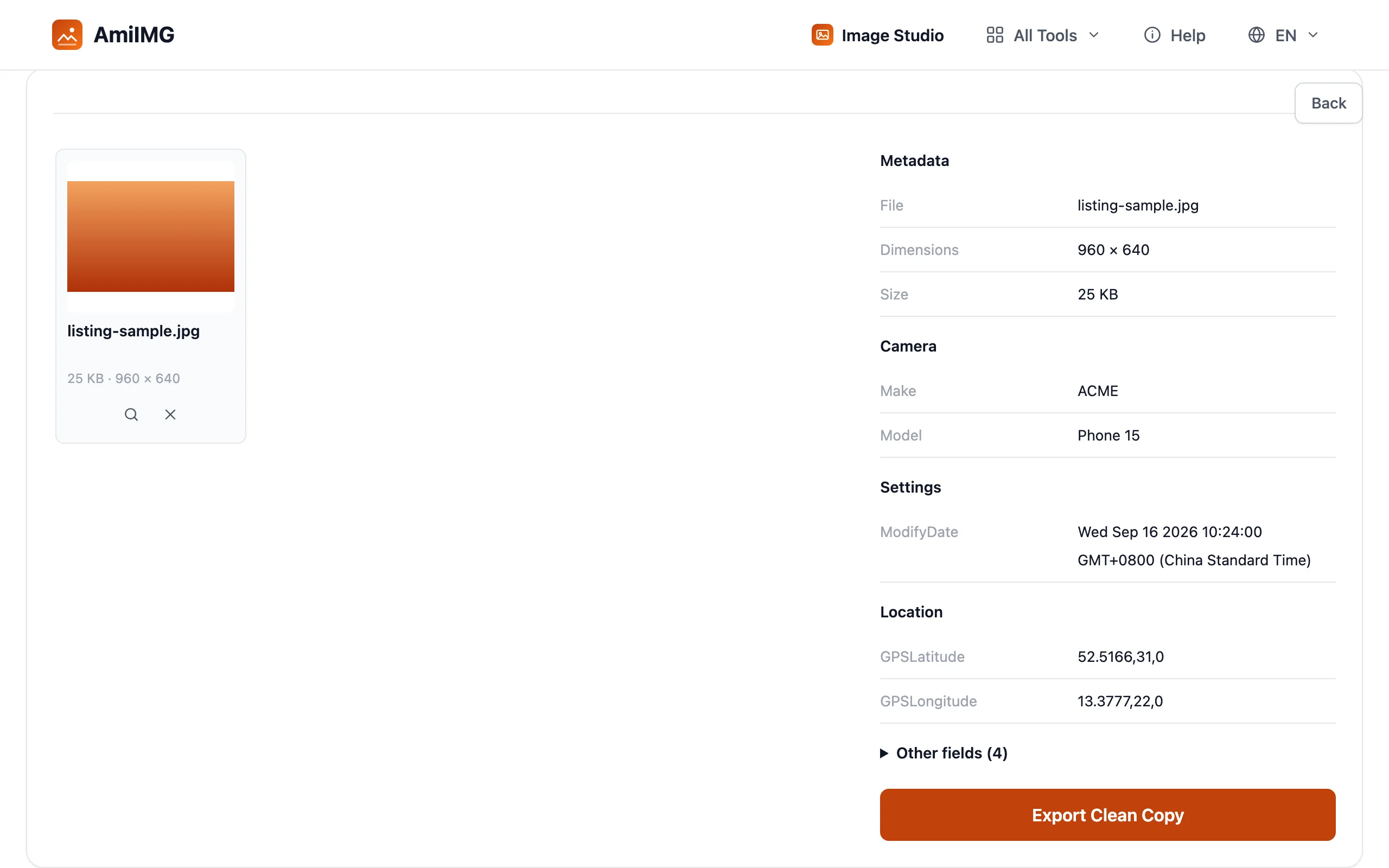
Check Location and the remaining fields
Location appears only when GPS tags exist: latitude, longitude, sometimes altitude. Everything else the parser finds hides behind the Other fields disclosure with a running count, which keeps long reports scannable. A file carrying no EXIF at all gets a one-line notice instead of an empty table.
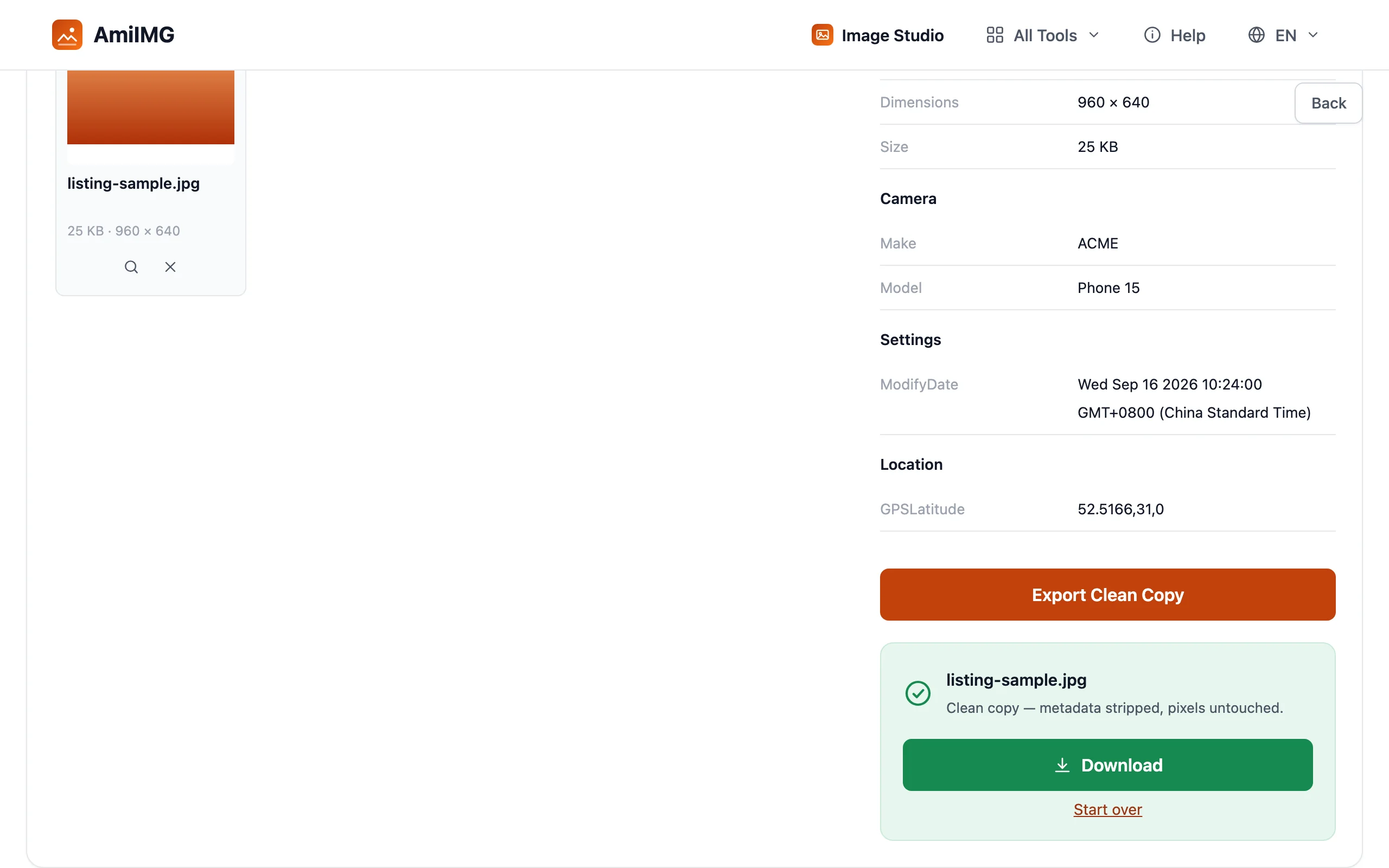
Export a clean copy when you're done reading
If a field shouldn't travel with the photo, Export Clean Copy writes a version with every metadata field stripped: pixels untouched, one high-quality re-encode, format unchanged. The sharing-side workflow has its own location removal guide.
Reading between the rows
Dates tell two different stories
DateTimeOriginal is when the shutter fired; ModifyDate is when software last saved the file. A ModifyDate a few hours after capture just means an editor or gallery app touched the file — routine. A capture date that contradicts the seller's claim is the interesting kind.
A report is testimony, not proof
EXIF fields are plain bytes, and tools exist that rewrite any of them. A consistent camera, lens, and serial number make a file's story credible; nothing in the block certifies it. Treat the report as one witness among several, not a verdict.
Rich reports come from camera files
Phones and cameras write their full EXIF into JPG, and modern ones do the same for WebP exports. PNG carries at most a sliver: a screenshot or a download typically shows the one-line no-EXIF notice, which is itself a clue about where the file has been.
Frequently asked questions
Do screenshots contain any metadata?
Screenshot pixels are built fresh by the operating system, so camera-typed EXIF doesn't exist in them. You'll usually see the no-metadata notice, sometimes a couple of software fields and rarely anything identifying.
Can I trust the capture date in EXIF?
As a default, yes: phone clocks set themselves, and the date travels inside the file. The field is writable, though, so for anything consequential, cross-check it: the file's other dates, the camera's frame numbering, or the context of the shot.
Does viewing or exporting change my original file?
No. Viewing only reads the file, and the clean copy is a separate download; the original sits exactly where it was, untouched.
Why do some photos show ISO and aperture while others don't?
Only cameras write those fields, and only into formats that carry them. An edited export, a re-saved download, or a PNG may hold nothing but software tags; the strongest reports come from files that went straight from sensor to disk.
What is the body serial number in the Camera group?
Some cameras stamp their serial number into the EXIF block, handy for matching a listing's sample photos to the actual camera on sale. Plenty of makers leave the field out, so an absent row means nothing by itself.