How to Remove Location from a Photo
Remove location data from a photo before sharing: check the EXIF report for GPS coordinates, then export a clean copy. Pixels untouched, runs in your browser.
View your photo's metadataThe photo you are about to send carries a return address. Cameras and phones write an EXIF block into every image: the device, the settings, the timestamp, and, when GPS was on, the coordinates of the spot it was taken. Post that file to a group chat, a marketplace buyer, or an email thread, and the metadata rides along. Most social networks strip it on upload, but "send original" buttons, email attachments, and cloud links hand over the file exactly as it left your phone.
The fix is to remove location data yourself, on a copy. Stripping EXIF deletes text fields in the file header; the pixels are never touched, so the photo looks identical and loses nothing in quality. AmiIMG's metadata viewer shows you every field the file carries, GPS included, before you export a clean copy with all of it gone. One image at a time, entirely in your browser.
Removing location data, step by step
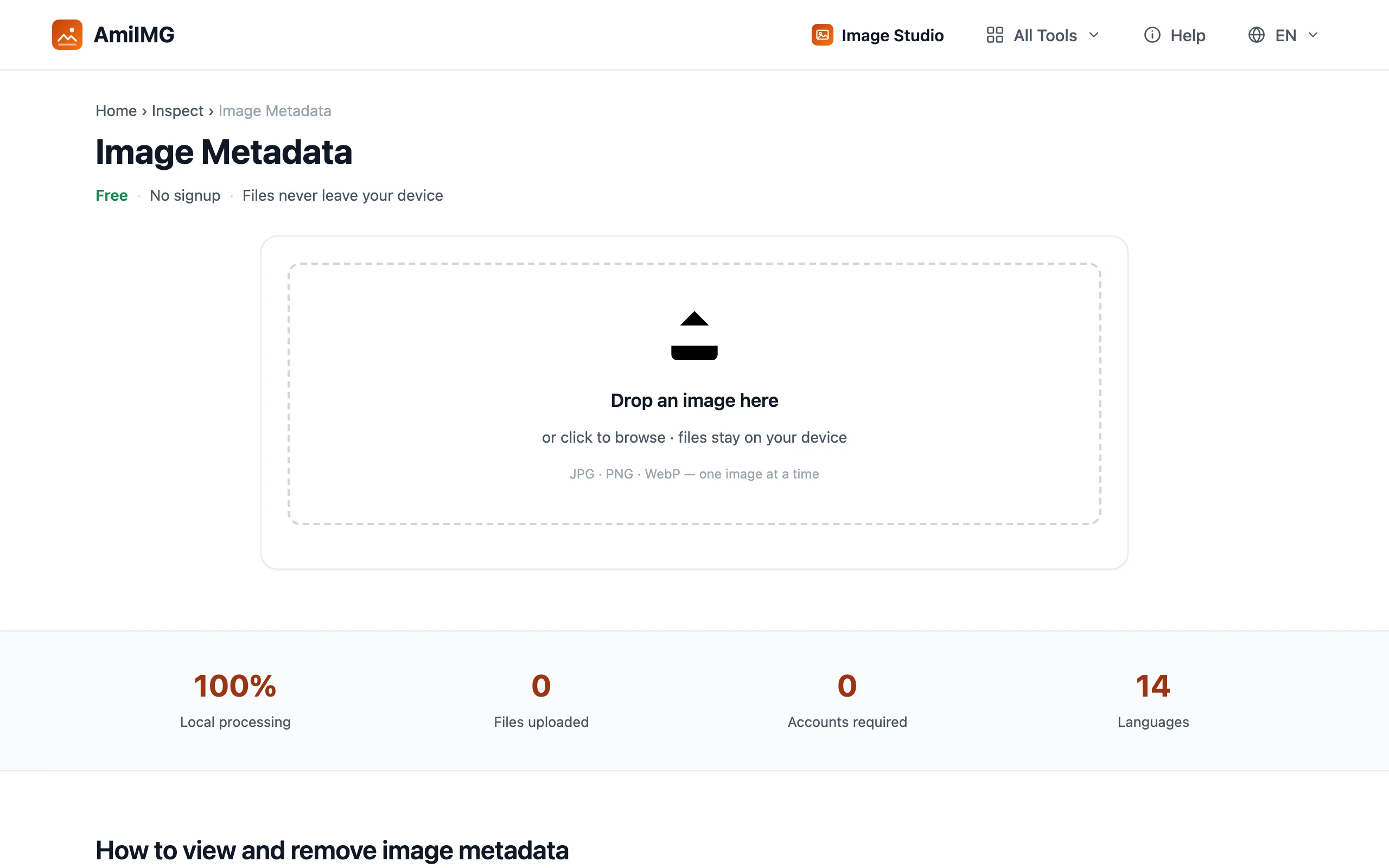
Open the viewer and drop the photo
Go to the AmiIMG metadata viewer and drop the picture on the zone. JPG, PNG, and WebP are supported; the report is decoded on your device, so the file never travels.
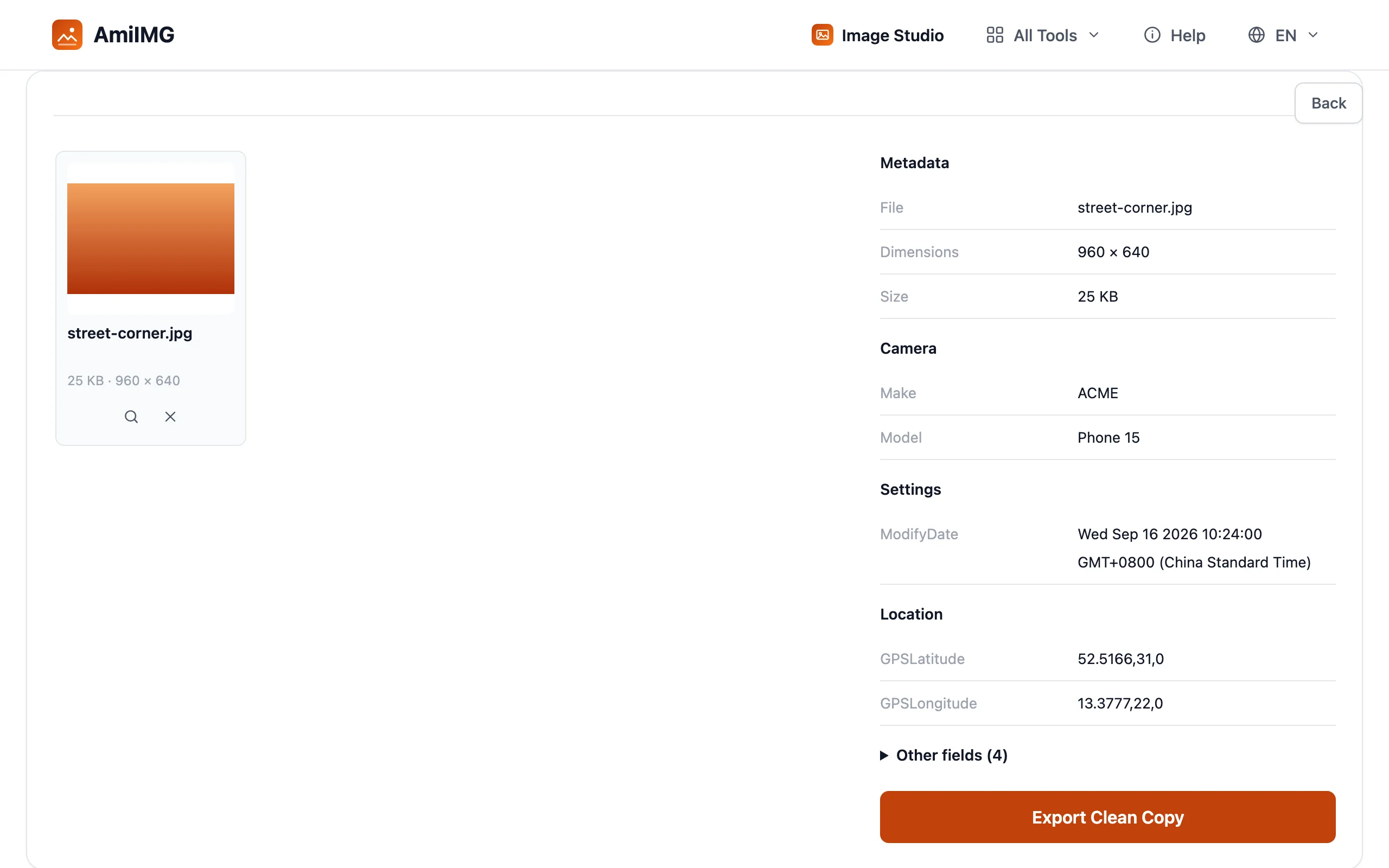
Check the Location group
The report splits into Camera, Settings, Location, and Other. GPS coordinates, when present, sit under Location: latitude and longitude precise enough to point at a building. A phone with GPS off at capture time simply shows nothing there.
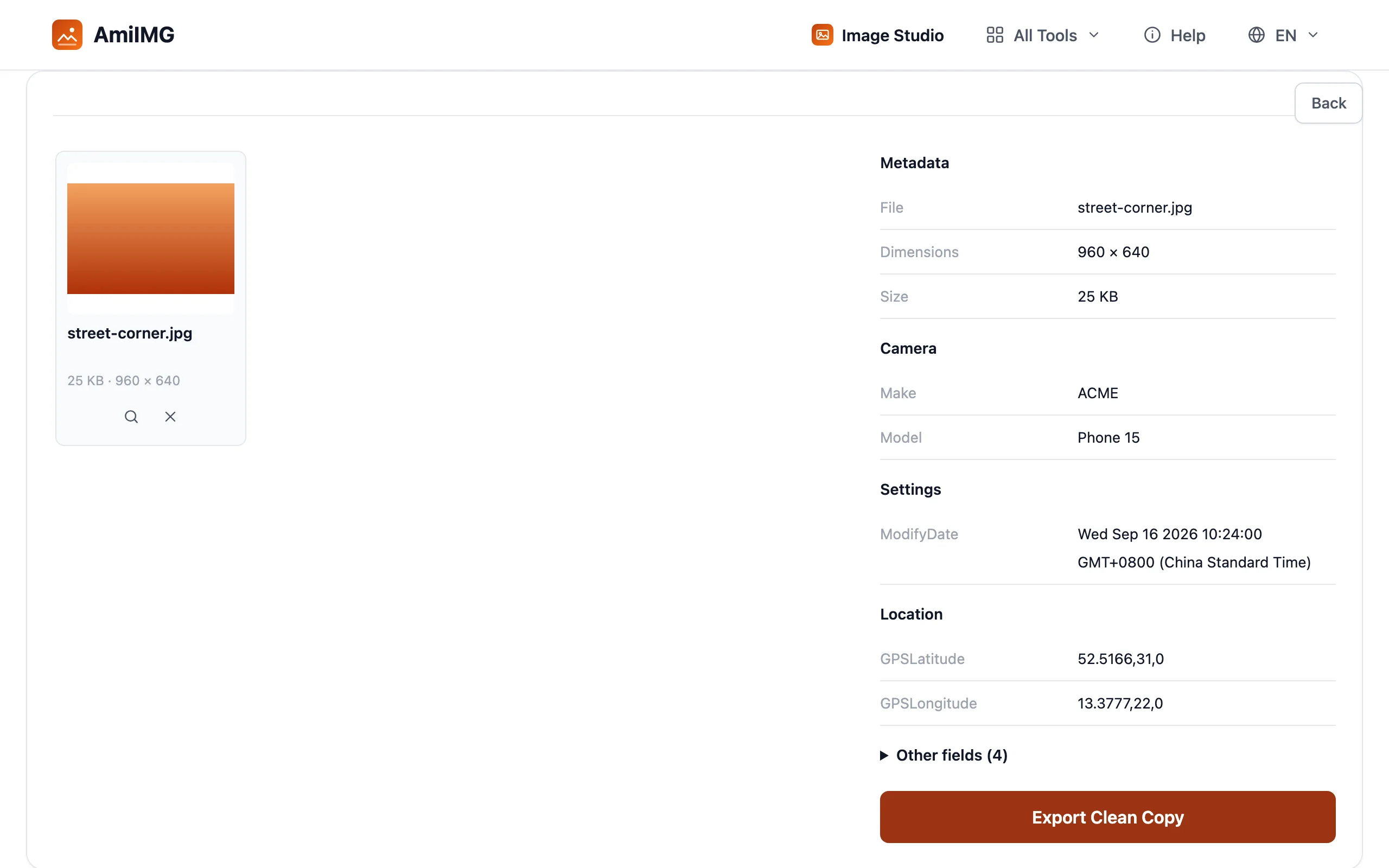
Export the clean copy
Hit Export Clean Copy. The download is the same photo with every metadata field stripped: pixels untouched, dimensions unchanged, nothing recompressed.
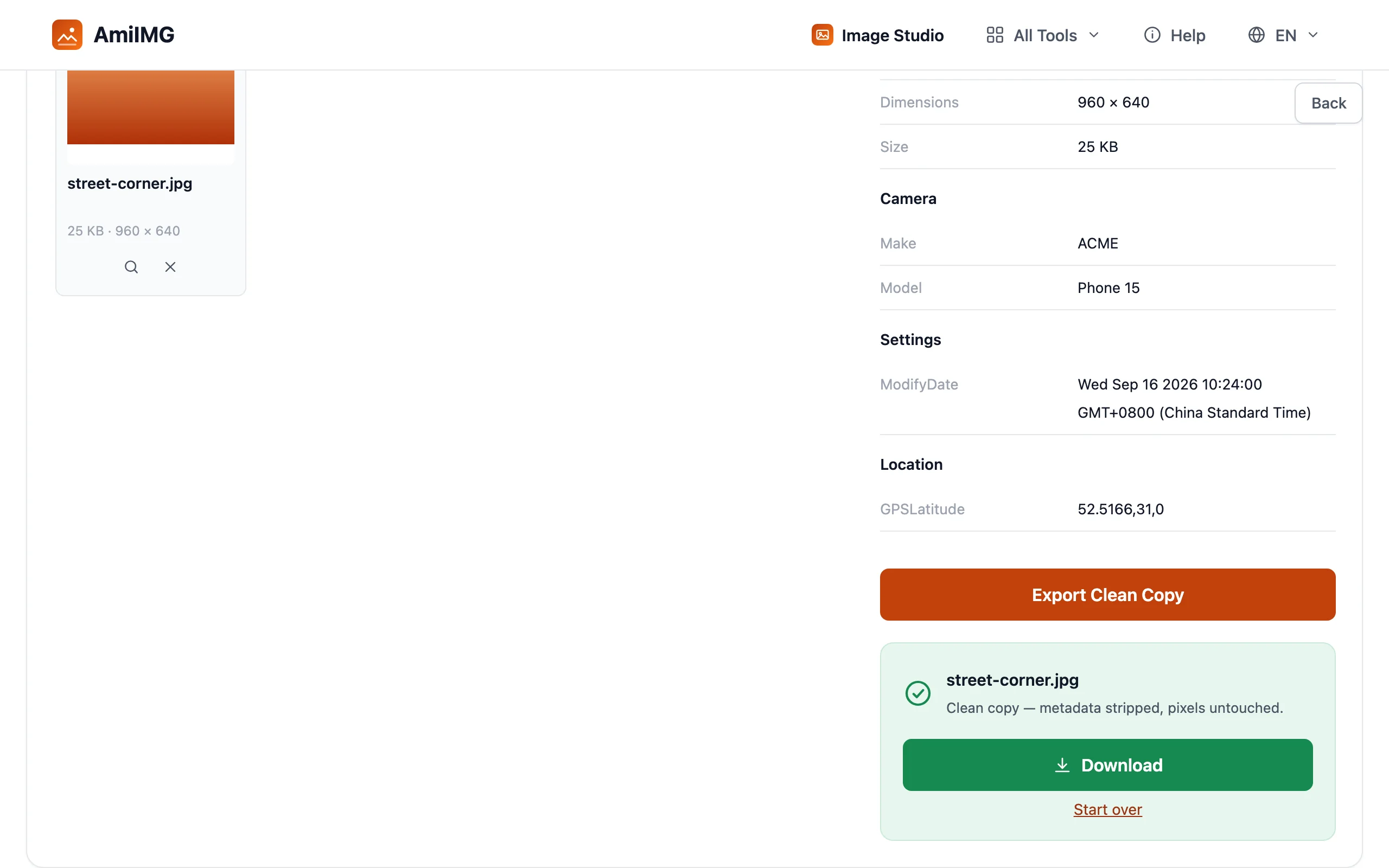
Share the copy, keep the original
Send the clean file onward and keep your original locally. Anything you share from now on carries no coordinates, no timestamps, no device signature.
Sharing without leaving a trail
"The app strips it" is not a guarantee
Major networks do remove EXIF from standard uploads, and that much is reliable. The exceptions are where leaks happen: messaging apps' send-as-original option, email attachments, and direct cloud-drive links all pass the file unmodified. When in doubt, strip first, then send.
Screenshots are usually safe
A screenshot builds fresh pixels, so EXIF from the original doesn't survive. The trap is the reverse: sharing the original HEIC or JPG straight from the camera roll, where the full block is intact. Checking takes ten seconds; guessing takes a news cycle.
Coordinates are not the only clue
EXIF timestamps reveal patterns: school runs, gym hours, the weekly café. And stripping metadata does nothing about landmarks, street signs, and reflections visible in the photo itself. Machine data gone is step one; look at the picture as step two.
Frequently asked questions
Does Instagram remove location data automatically?
For normal uploads, yes: major social networks strip EXIF when they recompress your photo. The exposure is in original-quality sharing, email attachments, and cloud links, which pass the file as-is.
How can I check whether a photo has GPS data?
Drop it in the metadata viewer and look at the Location group; coordinates appear there when present. On a phone, the gallery app's info panel shows the same thing.
Does removing EXIF affect photo quality?
No. EXIF lives in the file header as text, separate from the image data. The clean copy keeps the photo visually identical; like any export, the file is written out once at high quality.
Can someone still figure out where a photo was taken?
Sometimes, yes: from what's visible in the frame: landmarks, street signs, storefronts. Stripping EXIF removes the machine-readable coordinates, not the visual clues. Check the picture too.
What else does EXIF reveal?
Device model, lens, exposure settings, capture date and time, and editing software, enough to fingerprint your gear and routine, even without GPS.