How to Flip an Image Online
Flip an image online: mirror photos horizontally or vertically, fix mirrored selfies and backwards text in scans, batch up to 50 files. Runs in your browser.
Flip an image nowA selfie from the front camera shows text backwards — on your shirt, on a sign behind you, anywhere letters appear. The preview mirrored the world the way a bathroom mirror does, and some phones keep that version when saving. Scans and video exports come out mirrored now and then for their own reasons. The cure is a mirror flip in the other direction.
AmiIMG's image flipper flips an image in one click, or a batch of fifty in the same pass. Pick Flip horizontal or Flip vertical on the panel and every thumbnail redraws on the spot, so the corrected picture is on screen before anything exports. The whole run happens in your browser; no photo leaves the device.
Flipping images, step by step
Add the photos that need mirroring
Open the AmiIMG image flipper and drop the files on the zone, or click it to browse. It takes JPG, PNG, WebP, GIF, and BMP, up to 50 images at 30 MB apiece. Drag the thumbnails around to set the order the ZIP will carry.
Choose the flip direction
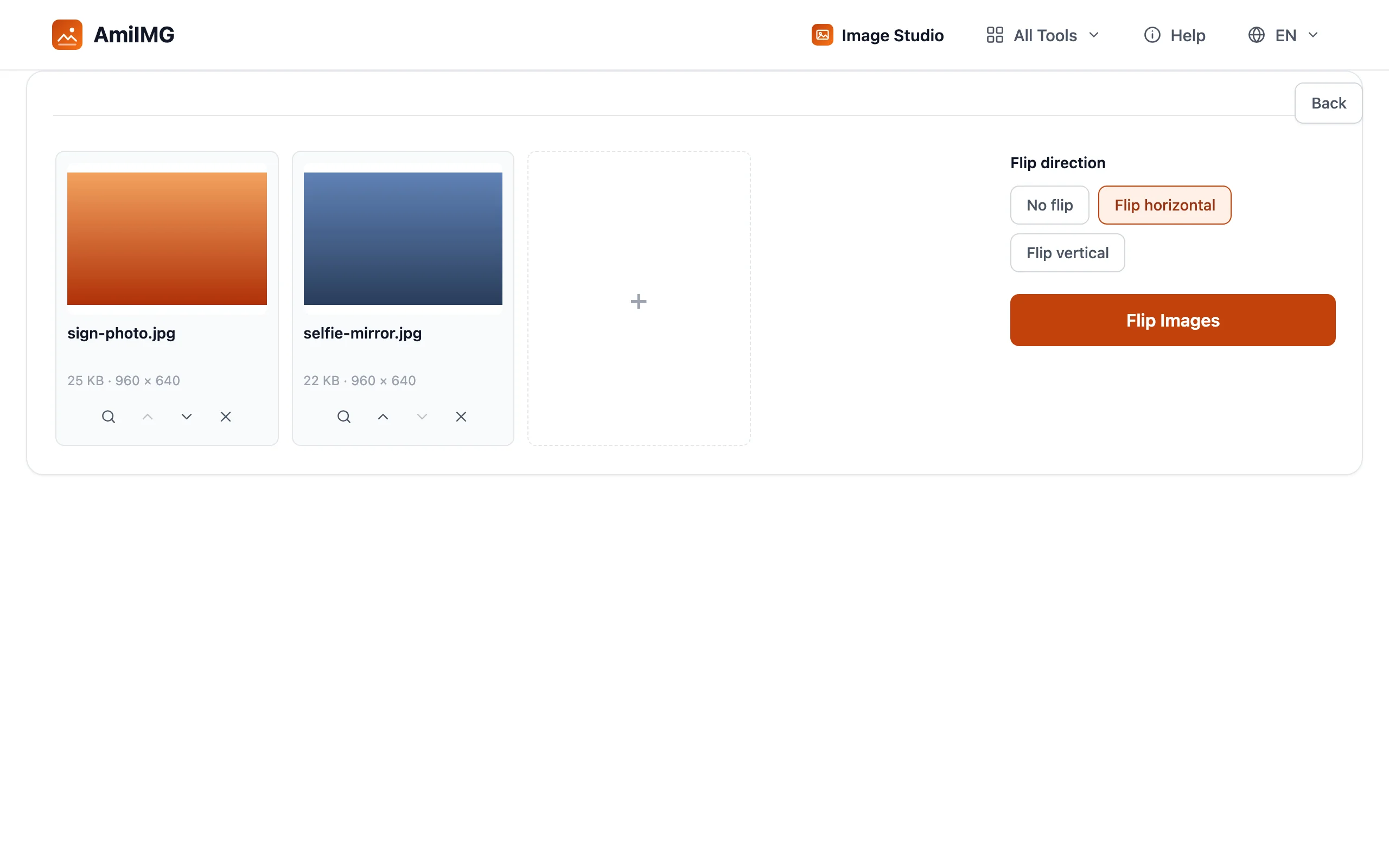
The panel holds three buttons: No flip, Flip horizontal, Flip vertical. Horizontal mirrors left-right, the fix for backwards text and mirrored selfies; vertical mirrors top-bottom instead. Thumbnails update the instant you pick, and files added afterwards inherit the setting.
Flip the batch
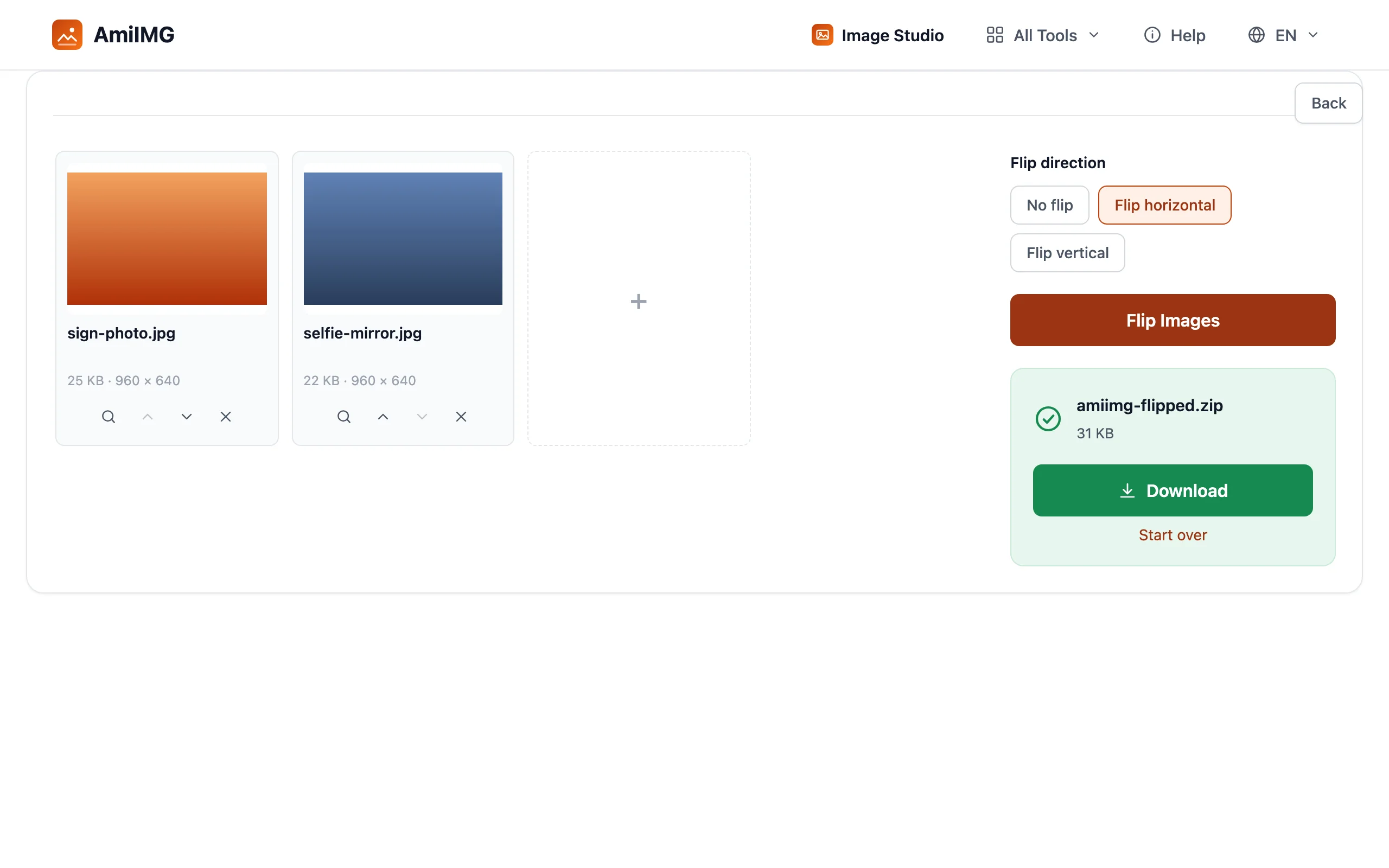
Hit Flip Images. A mirror is pure geometry, with no pixel resampled along the way, so nothing softens in transit. Exports keep their original format, except GIF and BMP, which come out as PNG.
Download the mirrored files
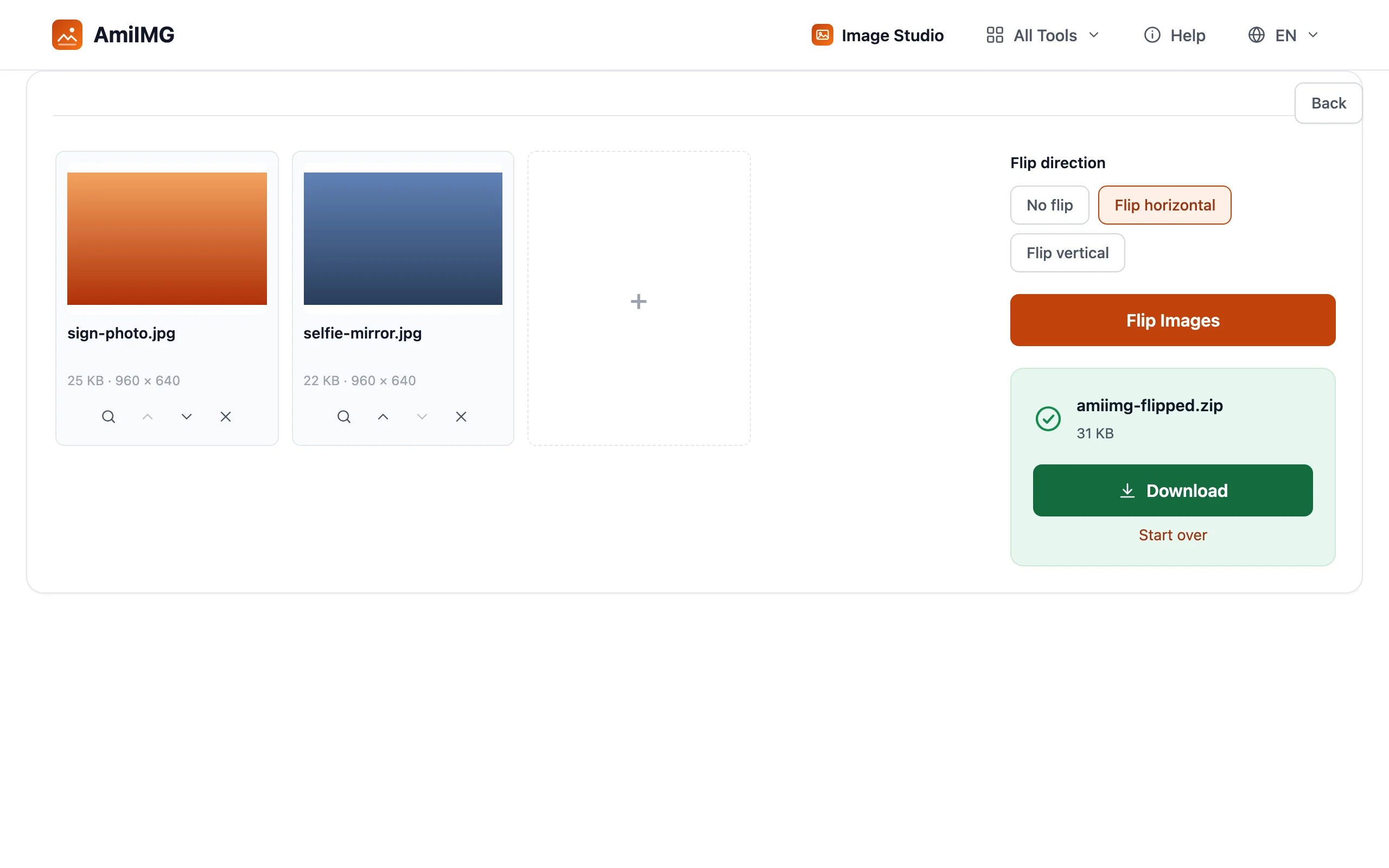
One file downloads on its own; a batch arrives as a single ZIP with every image already flipped inside.
Getting the direction right
Text is the fastest tell
Readable-but-backwards words mean a horizontal mirror fixes it. Upside-down usually calls for a 180° turn instead — that's the rotation guide's territory. A vertical flip can also right an upside-down scan, but it mirrors the content while doing so, which matters when text is in the frame.
Mirror quality stays put
The flip itself never resamples: resolution and sharpness survive exactly. Exporting re-encodes the file once, as any save does: PNG output stays lossless, and JPG and WebP keep their quality setting.
Two passes for mixed batches
The panel direction applies to every file in the queue. When most photos need a flip and a few don't, run the majority as a batch and push the exceptions through separately; a single-file run skips the ZIP entirely.
Frequently asked questions
Does flipping an image lower its quality?
No. Mirroring moves pixels without resampling them, so resolution and detail pass through intact. The export writes the file once more, and PNG output remains fully lossless.
Can I flip only some of the photos in a batch?
Not in one pass; the chosen direction applies to the whole queue, including files added later. Split the job: the batch gets the panel direction, the exceptions get their own single-file run.
Which do I need, flipping or rotating?
Flipping mirrors the photo across an axis, as a mirror does; rotating turns it in the frame. Backwards text wants a flip; a sideways or upside-down photo wants rotation.
Will a horizontal flip restore a mirrored selfie?
Yes, when the phone saved the mirrored preview. The result is the view everyone else had of the scene, with letters on signs and shirts reading normally again.
How many images fit in one run?
Up to 50, each up to 30 MB, delivered together in one ZIP.