How to Batch Rotate Images Online
Batch rotate images online: 90°, 180°, 270° plus horizontal and vertical flips, up to 50 photos in one pass. No resampling, no uploads, runs in your browser.
Rotate your images nowA whole batch of photos lands sideways or upside down on the computer. The phone sensor recorded which way was up, as a flag in the file's metadata, but the software on the other end never read it. Scanners do their own version of the same trick. Rotating twenty photos one at a time, by hand, in an editor, gets old by the fifth one.
A 90° rotation is a pixel transpose: rows become columns at full resolution, with no resampling and nothing re-invented. AmiIMG's image rotator rotates whole batches of up to 50 photos in one pass: set the angle on the panel and every image takes it, click a thumbnail's badge for a per-image +90 nudge, and exports bake the orientation you see into the pixels themselves, so no downstream viewer can second-guess it. Flips come along too: horizontal and vertical, for the days you need a mirrored copy.
Batch rotating, step by step
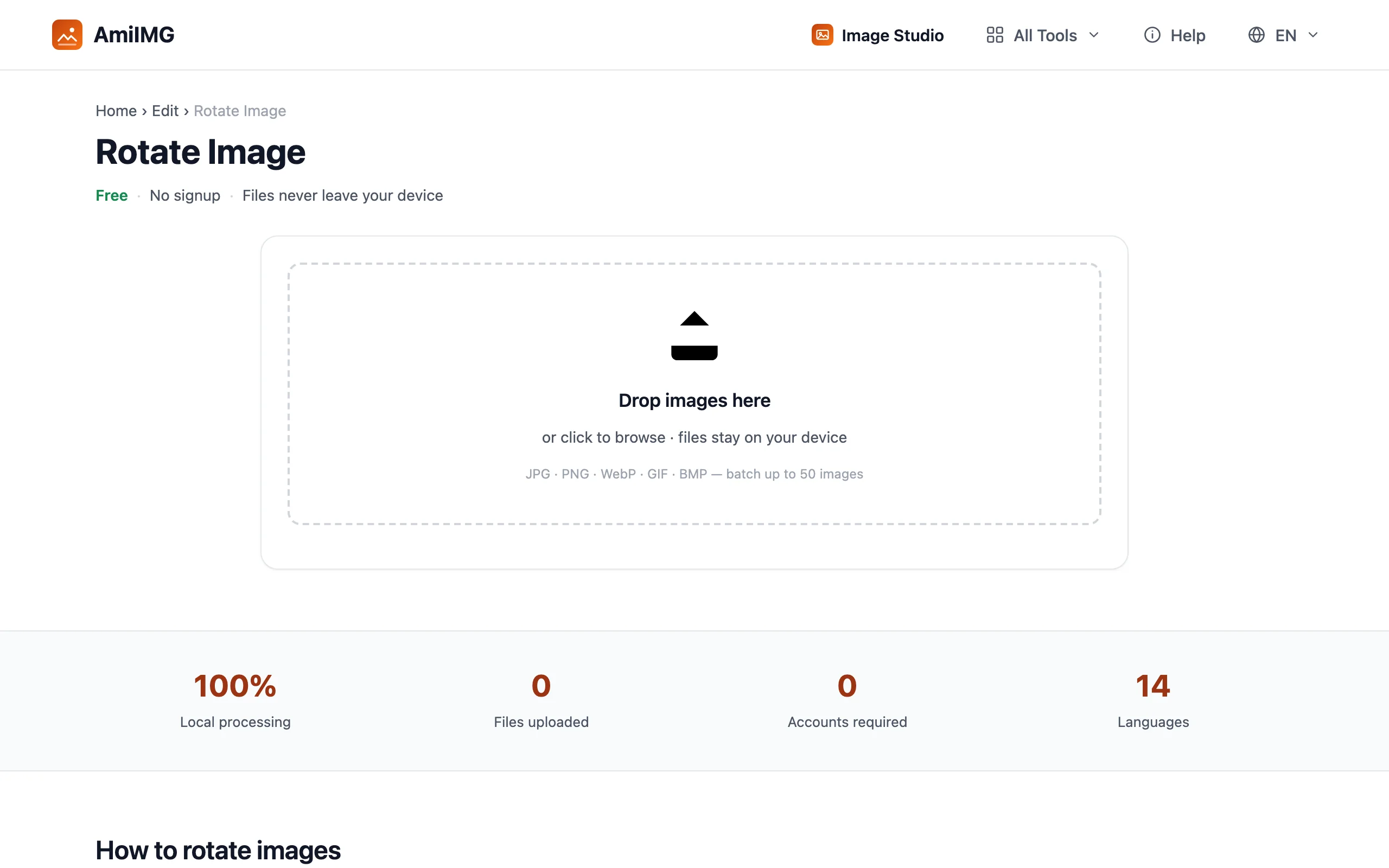
Queue up your sideways photos
Go to the AmiIMG image rotator and drop the batch on the zone. JPG, PNG, WebP, GIF, and BMP are accepted, up to 50 files at 30 MB each. Every card keeps its own rotation state, right on its thumbnail.
Set the angle for the whole batch
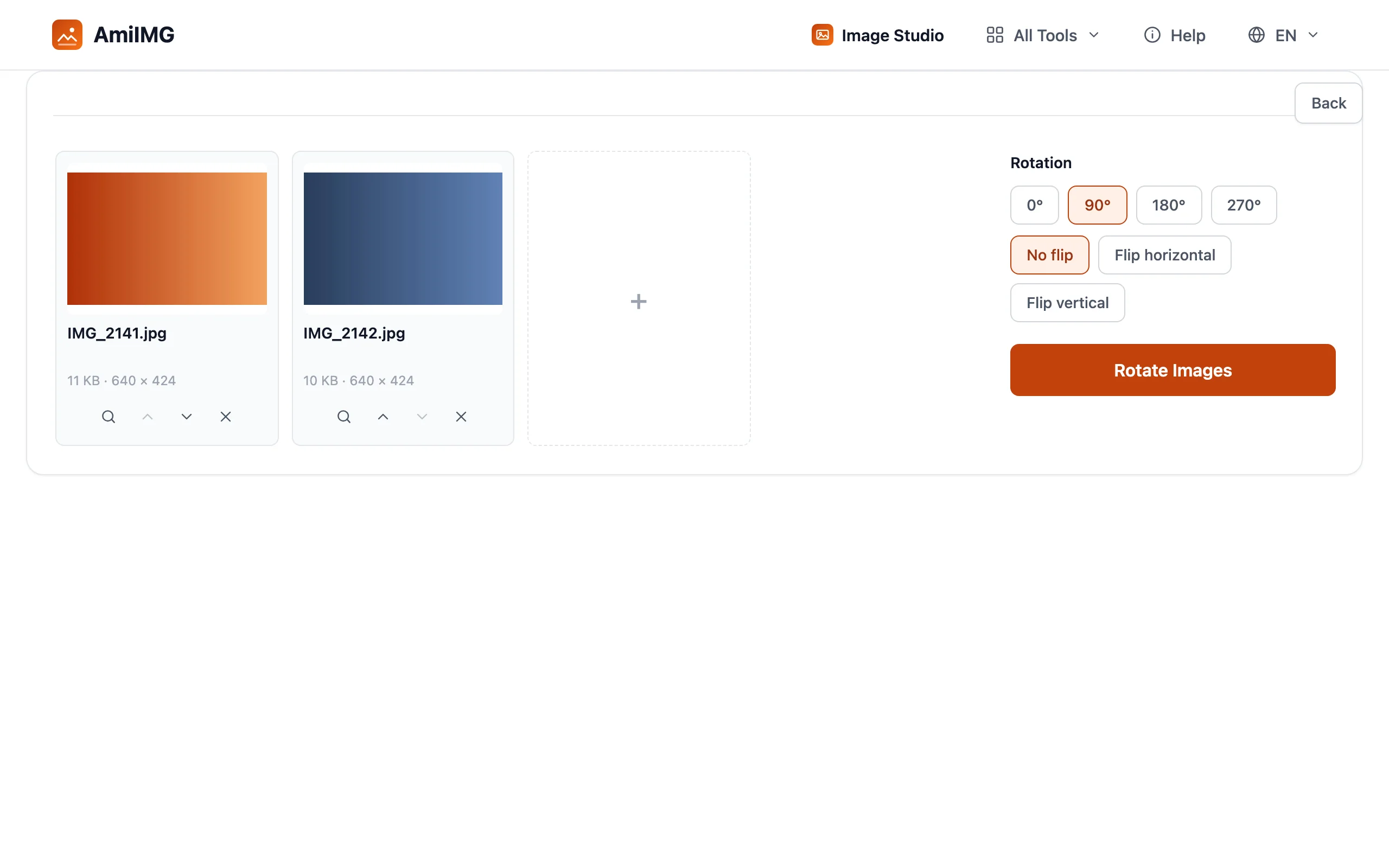
The panel offers 90°, 180°, and 270°; whatever you pick applies to every image in the queue. Previews redraw instantly on each thumbnail, so a mixed batch of sideways and upside-down shots is easy to eyeball.
Nudge single photos where they differ
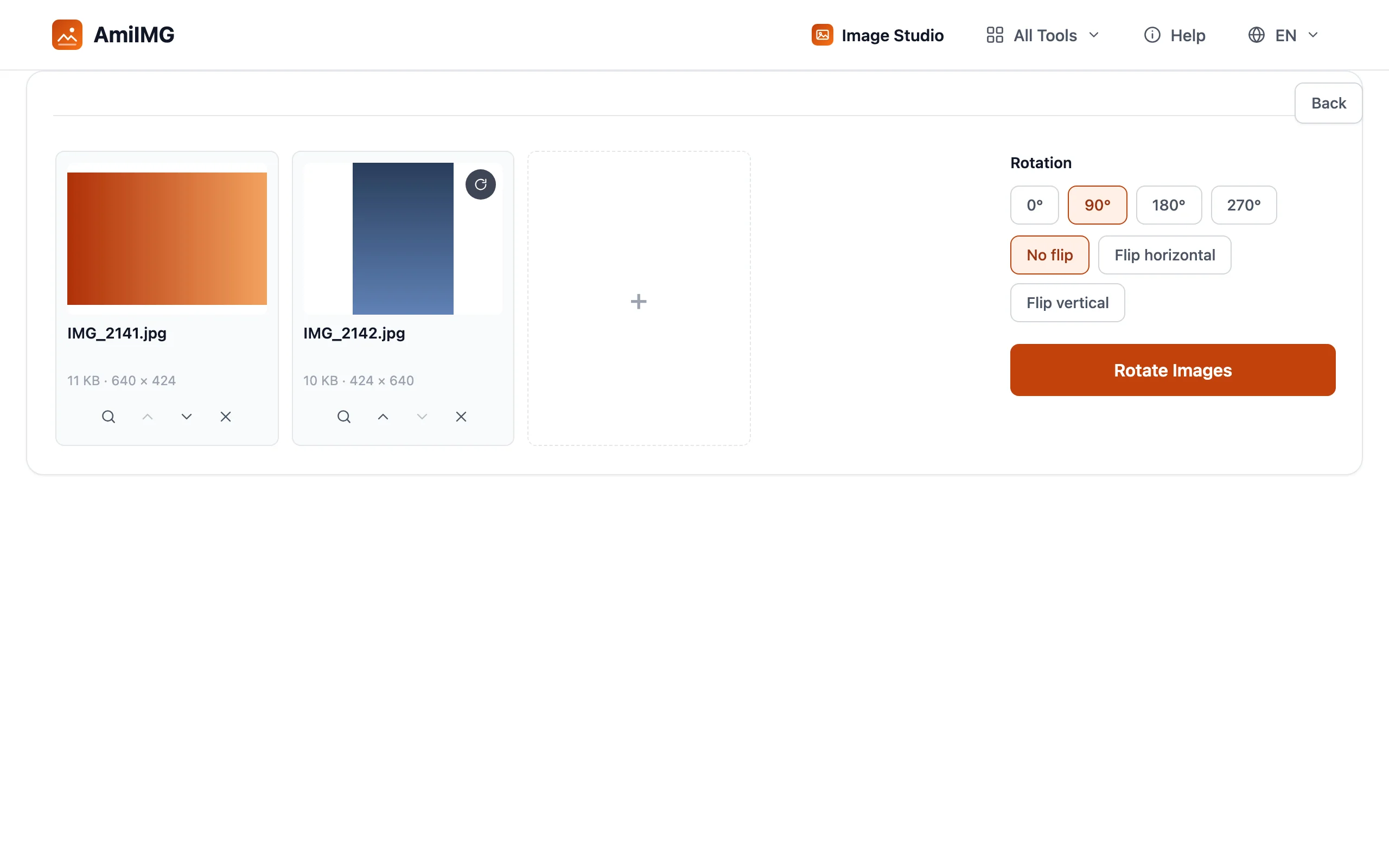
If one photo points the wrong way, click its thumbnail badge for a per-image +90 step; the rest of the batch keeps the panel setting. For a mirrored copy, the flip row does horizontal and vertical.
Rotate and download
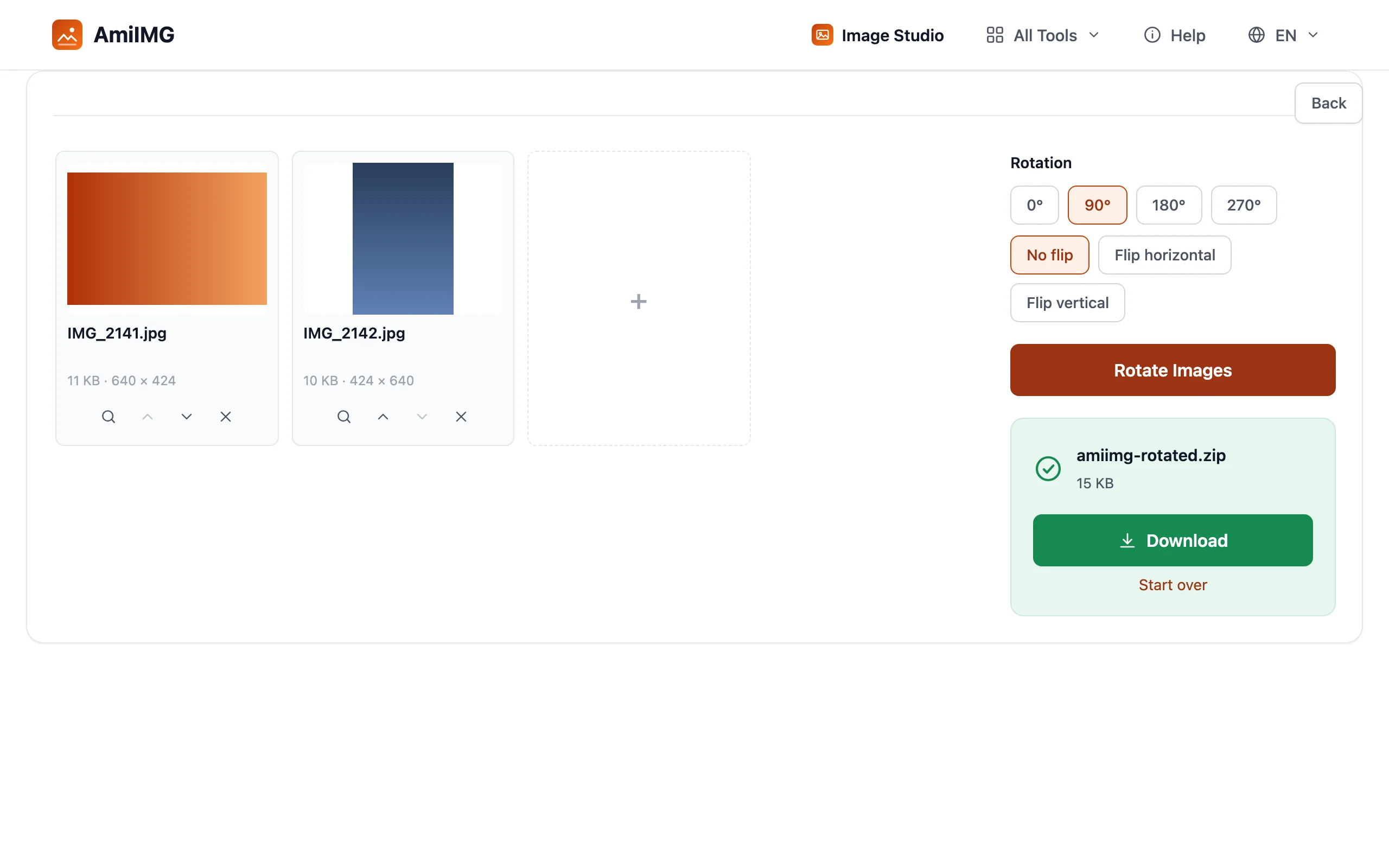
Hit Rotate Images. Every 90° step is an exact transpose (no resampling anywhere), and the whole batch lands in one ZIP, orientation baked in.
Getting the best results
Rotating is not flipping
A rotation turns the photo; a flip mirrors it. Text is the tell: rotate a scanned page 180° and the words are still intact when you turn your head; flip it and the words run backwards. Orientation problems want rotation; selfie mirrors and transfer-paper prints want a flip.
90° steps only, by design
Straightening a 3° tilt is a different job: it crops the corners and resamples the whole frame. This rotator sticks to exact 90° steps precisely because they stay lossless; angles in between can't.
Baked orientation beats the flag
Some old viewers and thumbnail caches ignore the orientation flag entirely, which is why the same photo can look right in one app and sideways in another. Exporting from here writes the rotation into the pixels: every viewer agrees, no metadata debate.
Frequently asked questions
Does rotating reduce image quality?
No. A right-angle turn is an exact transpose, so resolution survives intact; the file is simply written out again at high quality, and PNG export stays fully lossless.
Can I rotate by a custom angle, like 3 degrees?
No: only 90°, 180°, and 270°. Angles in between require corner-cropping and resampling, which this tool deliberately avoids to keep rotation lossless.
What is the difference between rotating and flipping?
Rotation turns the image around its center; flipping mirrors it, like printing on the back of the photo. Mirrored text runs backwards, and that's the quickest way to tell.
Why do my photos look sideways on some devices?
Phones store orientation as a metadata flag, not as pixels. Viewers that ignore the flag show the raw frame. Exporting through this rotator bakes the rotation into the pixels, so every viewer agrees.
How many images can I rotate at once?
Up to 50, at 30 MB per file. Mixed rotations are fine; each image keeps its own angle and flip.