How to Blur Faces in Photos
Blur faces in photos automatically: on-device detection finds every face, you pick mosaic, blur or a solid bar, and download. Batch up to 50, no uploads.
Blur faces nowGroup chat photos, marketplace listings, street shots: the picture is worth posting, and the faces in it are not yours to publish. Blurring them by hand means boxing every head one at a time, and the small face in the corner is easy to miss.
The AmiIMG Blur Faces tool finds the faces for you. Detection runs in your browser, frames each face, and applies the blur style you pick; a review mode lets you fix boxes before export. Photos never leave your device.
Blurring faces in a photo, step by step
Add your photos
Drop in JPG, PNG, WebP, GIF, or BMP files, up to 50 per batch and 30 MB each, read straight off your device.
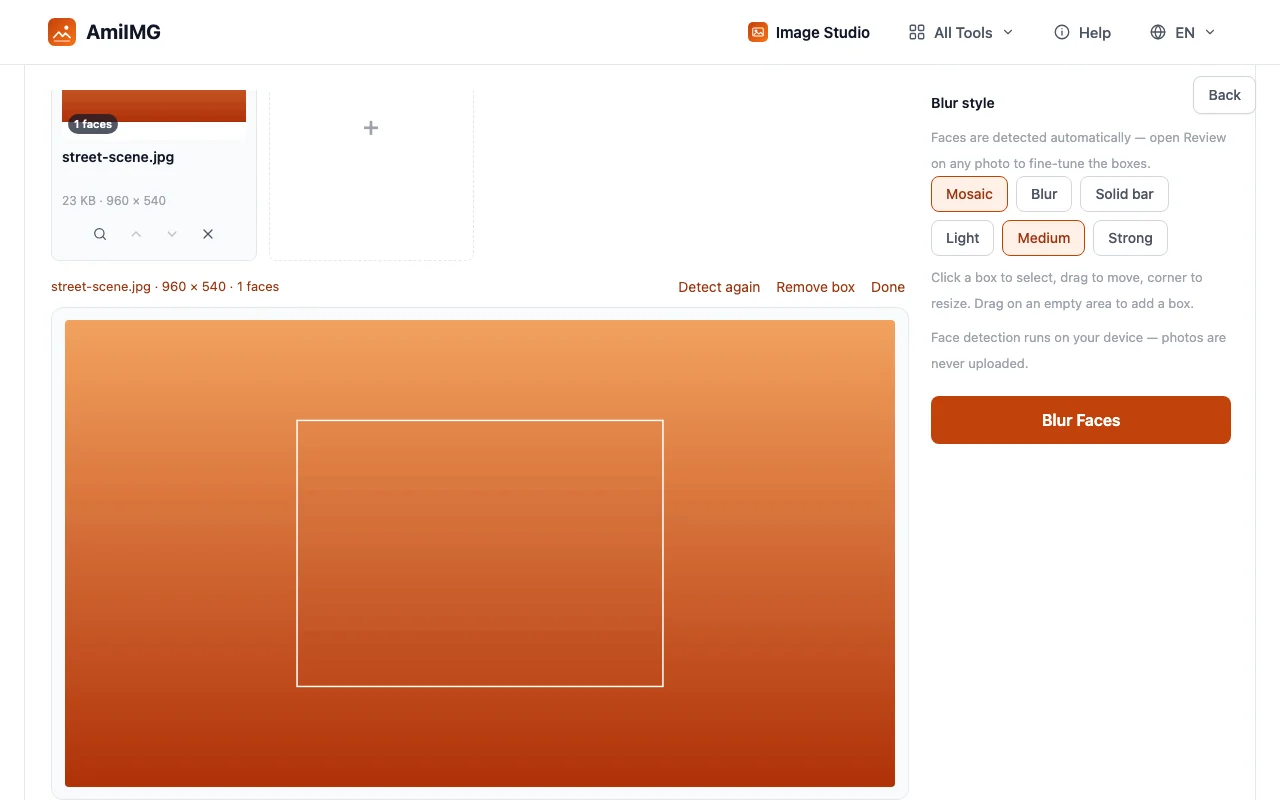
Check the detected boxes
Click the review badge on any card. Detection runs on your device and frames each face; click a wrong box to remove it, drag on the image to add one the detector missed. Plates and door numbers get the same treatment via a hand-drawn box.
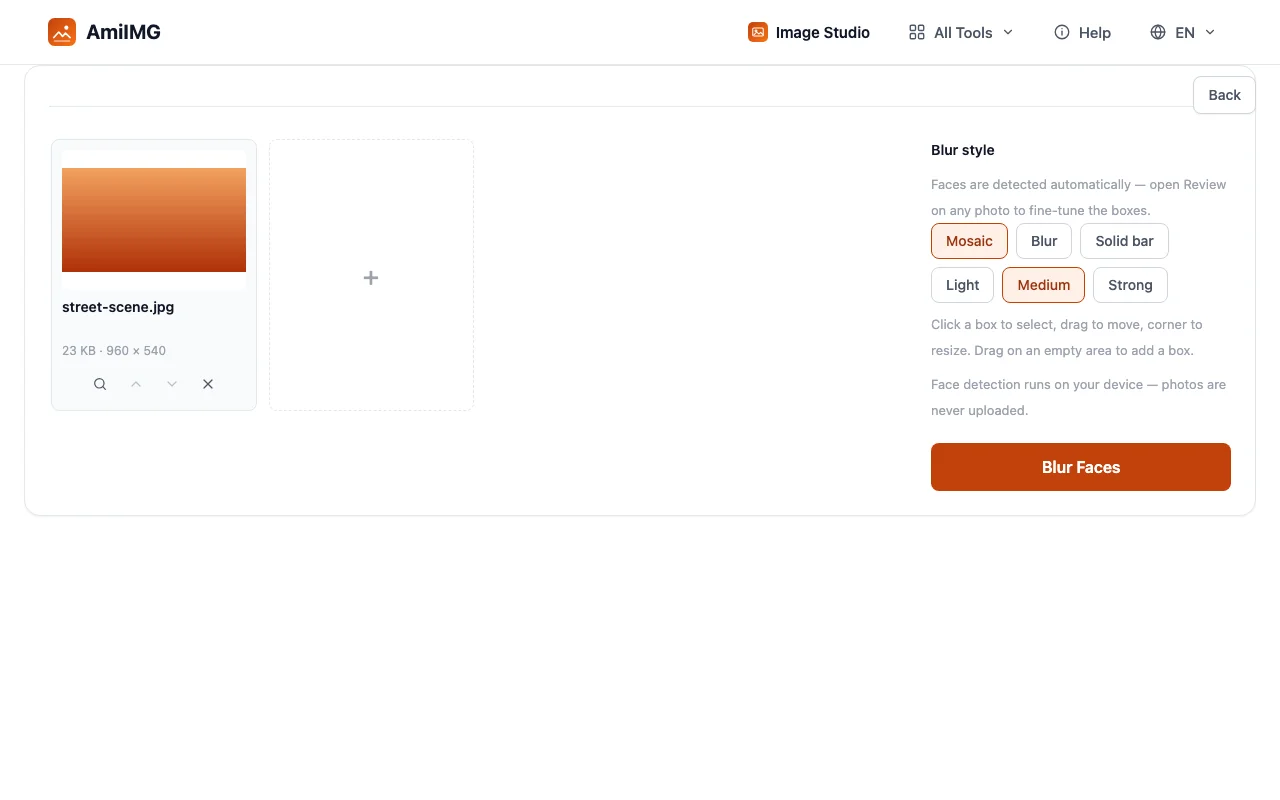
Pick the style and strength
Mosaic swaps faces for pixel blocks, soft blur smears them, and a solid bar covers them outright. Strength sets block size or blur intensity, and the preview renders live, so the preview is the strength you get.
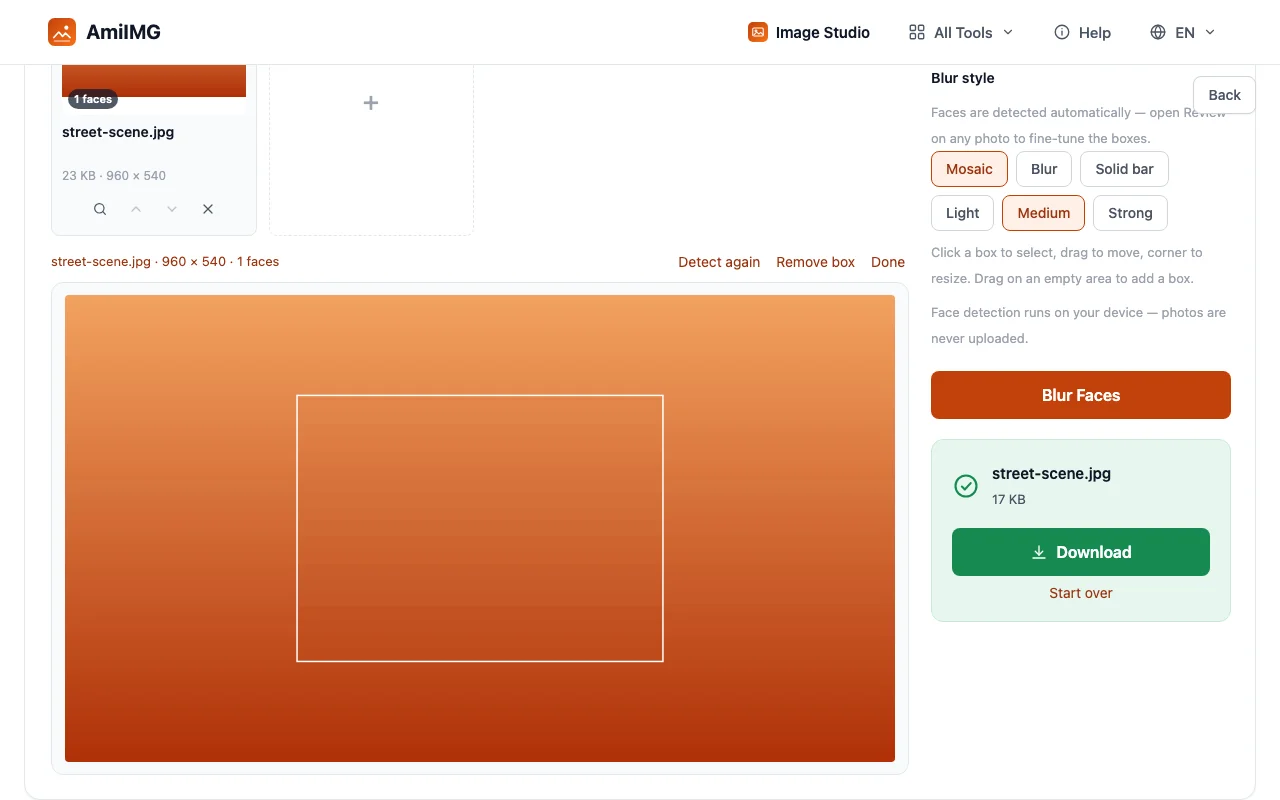
Blur Faces and download
Hit Blur Faces. Every photo with at least one box is processed; files where no faces were found are skipped and named in a notice, so an unblurred file never passes as a finished one. Batch results arrive as a ZIP, single files download directly, and the input format is kept (GIF and BMP sources export as PNG).
Redacting faces without surprises
Solid bars and coarse mosaic are the safest picks
A light blur keeps silhouettes readable: hairline, glasses, head shape. When the point is that nobody can tell who was there, coarse mosaic or a solid bar destroys that structure outright. Soft blur is for tone, not anonymity.
Detection covers faces, not identity
The detector finds frontal and near-frontal faces reliably, including small ones in group shots; heavily tilted or occluded faces can slip through. The review step exists for exactly that, and a manual box over anything missed takes two seconds. Tattoos, documents, and screens are never detected automatically; those always need a hand-drawn box.
The export is final
Blurred pixels are not in the exported file, and nothing recovers them later. Keep the originals on your device. The copy you post is the copy that stays blurred.
Frequently asked questions
Can I blur all faces in a photo at once?
Yes. Detection frames every face it finds, and one click applies the blur to all of them; you do not box heads one by one. The review mode is there if a box needs fixing, and skipping it entirely is fine for most photos.
Is blurring enough to protect someone's identity?
Usually, with the right style. Coarse mosaic and solid bars remove the information a recognition needs; a light blur can leave a face recognizable to people who already know it. For children and sensitive contexts, stay on the strong end of the scale.
Can it blur license plates and addresses too?
Not automatically: detection looks for faces only. Drag a box over a plate, a name, or a house number in review mode, and it gets the same treatment as a face. One photo can mix detected and hand-drawn boxes.
What happens to photos with no faces?
They are skipped. The result only contains processed files, and a notice tells you how many were left out. A photo you reviewed and cleared of all boxes is skipped the same way, since nothing in it is marked for blurring.
How is this different from the manual blur tool?
This one finds the faces for you; the manual blur tool obscures one region you box yourself. Use face blur when people are the sensitive part of the photo, and the manual tool when you already know the exact spot.