How to Compress an Image to an Exact Size
Compress an image to a specific file size: set a KB or MB cap per image and every result lands at or under it. Batch up to 50, in your browser.
Compress to your target sizeThe upload form wants under 2 MB. The email bounces past 10. The marketplace listing caps each photo somewhere in between. Shrinking images to fit a number is its own job; quality-level compression gets you a smaller file, but "smaller" doesn't clear a hard limit.
Target-size compression works backwards from the number: the engine encodes, measures, and steps the quality setting down until the file lands at or under your cap: the best quality the limit permits, not a guess at it. AmiIMG's image compressor takes the cap you set (200 KB, 500 KB, 1 MB, anything), applies it to a batch of up to 50 images, and runs the entire loop on your device without an upload in sight.
Compressing to a target size, step by step
Queue the batch
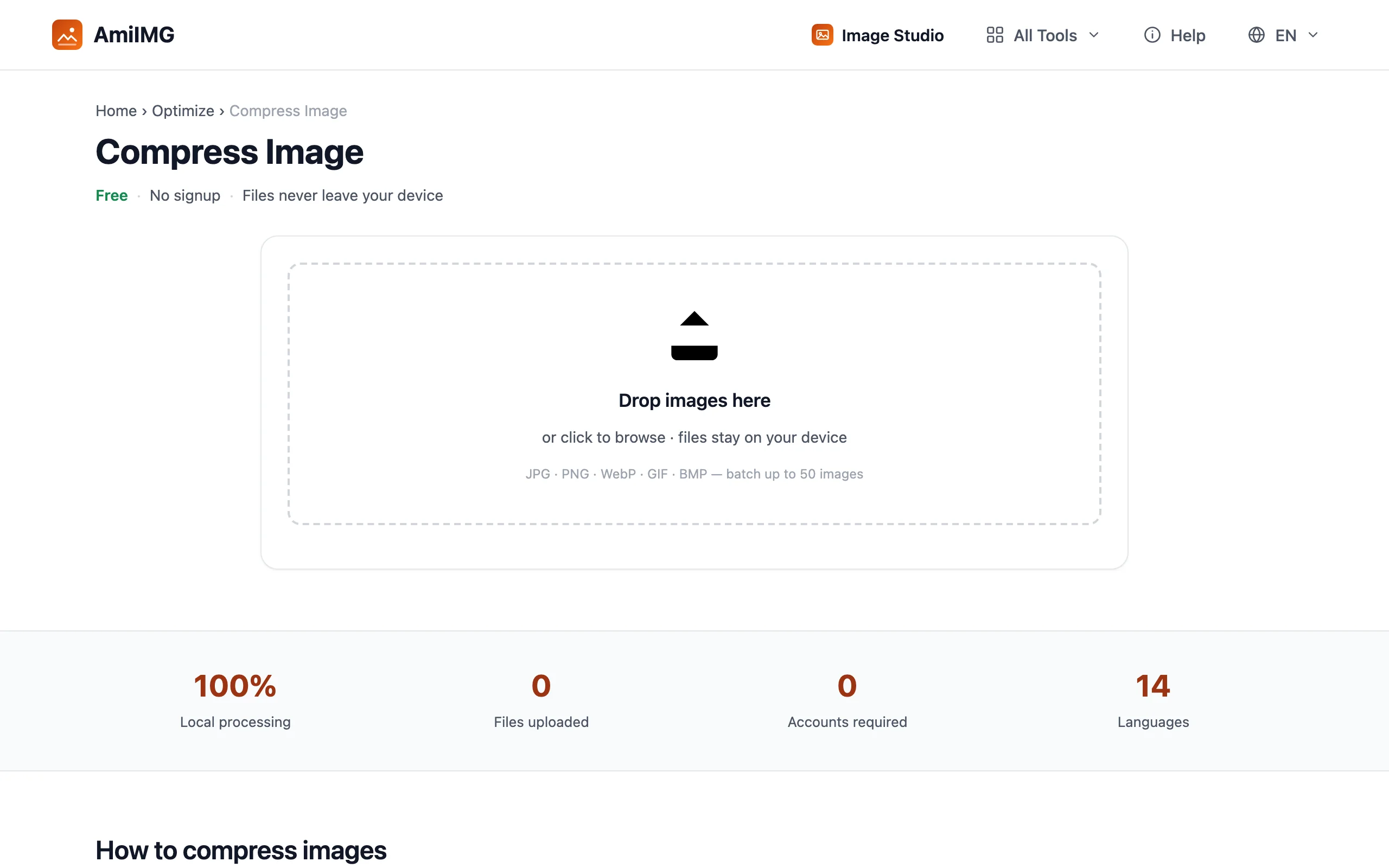
Head to the AmiIMG image compressor and drop up to 50 files. JPG, PNG, WebP, GIF, and BMP ride together; each card shows its current size so the worst offenders stand out.
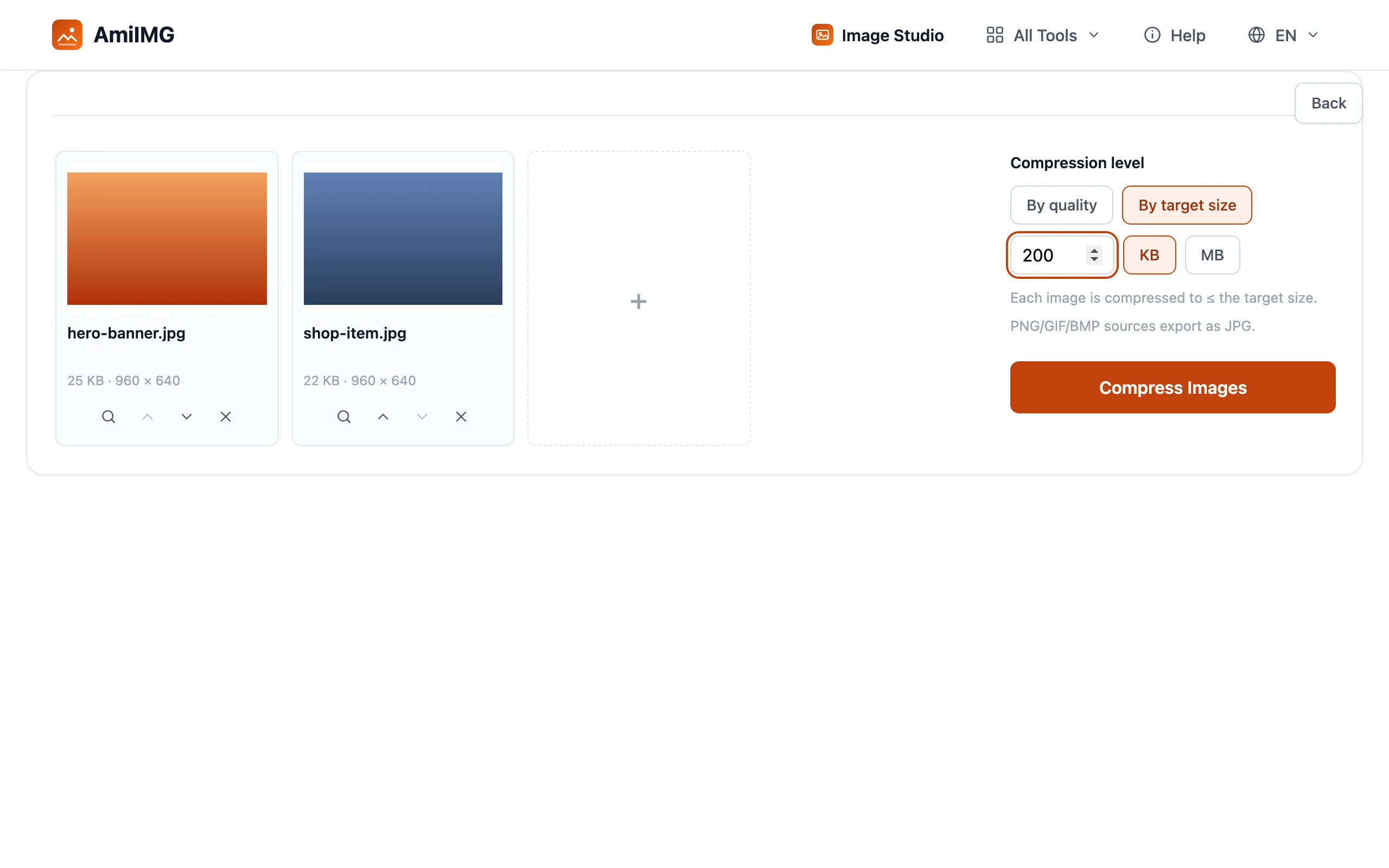
Switch to By target size
Pick By target size instead of a quality level and type the cap: 200 KB, 500 KB, 1 MB. Every image in the queue gets the same ceiling, and PNG, GIF, and BMP sources export as JPG, the one format with enough give to hit a number.
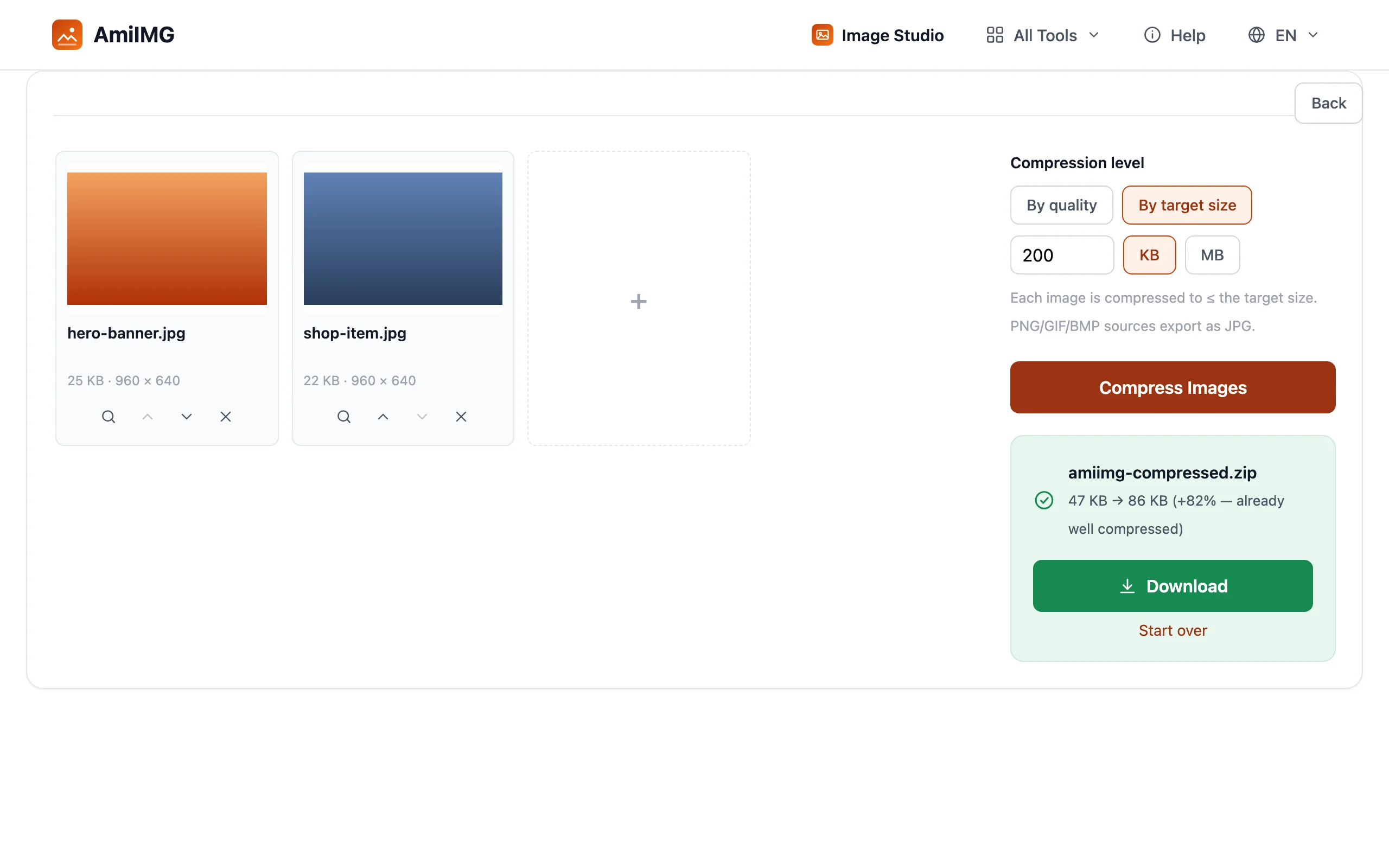
Compress and watch the math
Hit Compress Images. Each file iterates to the highest quality its own limit allows, and the results read out as old size → new size per image, so you see exactly what cleared and by how much.
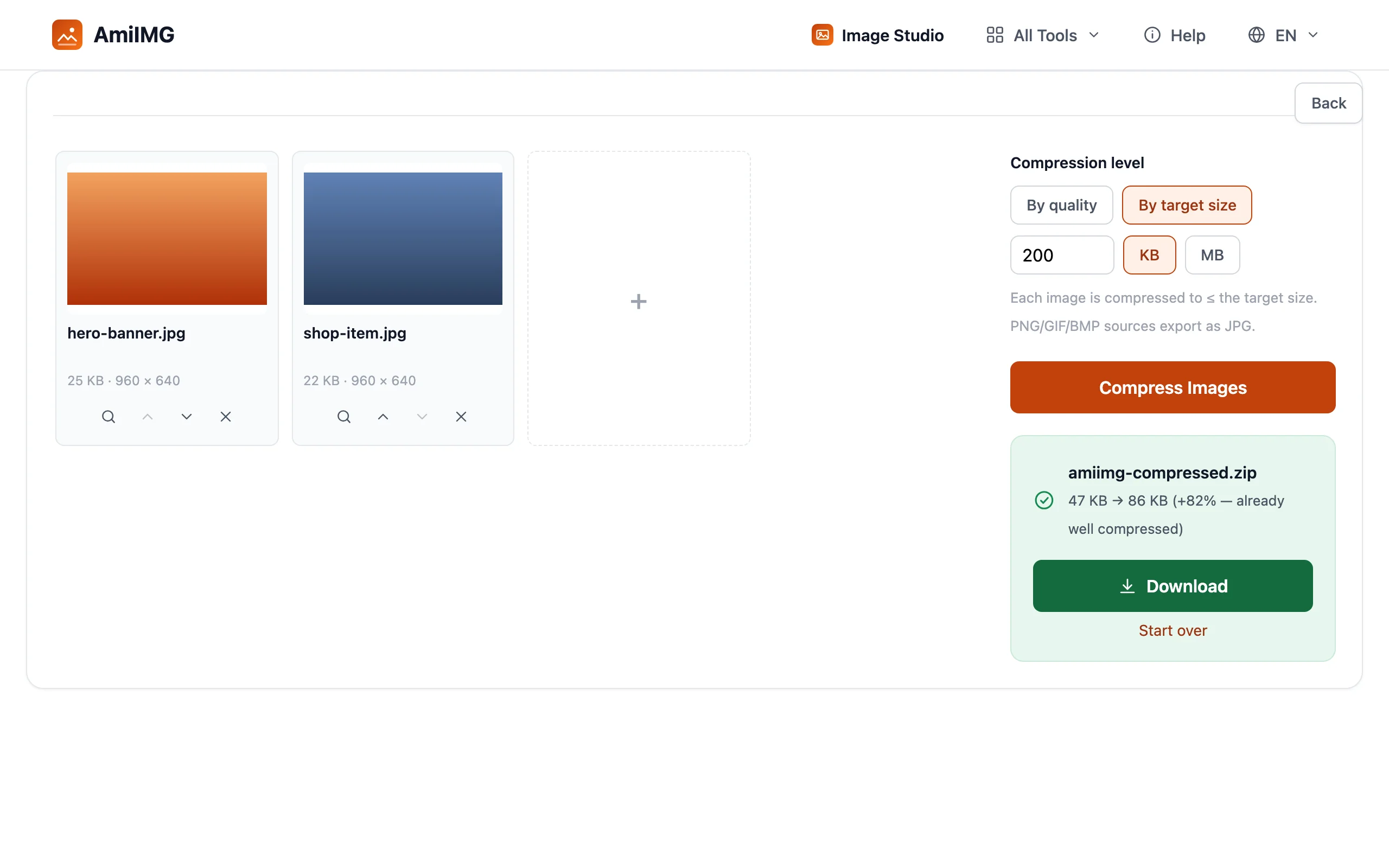
Download the batch
Grab everything in one ZIP. Names match the originals, so the compliant files land beside their sources, or go straight into the upload form that started this.
Hitting the number cleanly
If the cap is too low, resize first
When a photo can't reach a very low cap without turning to mush, the pixel count itself is the problem. Resize down to the display size first, then compress to the cap; half the data is gone before quality even enters the equation.
Where the common caps sit
Forms commonly ask for 2 MB, marketplaces land somewhere between 200 KB and 1 MB per image, and email attachments stretch to 10–25 MB per message. Set the target to the platform's actual number, not comfortably below it; every spare kilobyte of headroom is quality thrown away.
One cap, per image
The limit applies per file, not per batch. A 50-image queue at a 500 KB cap can still mean up to 25 MB of downloads; each file individually compliant, the total simply what it is.
Frequently asked questions
Does the result hit the exact byte count?
No: the guarantee is at or under the cap. The engine stops at the highest quality that fits, so a simple photo may land well below the limit.
Why did my PNG export as JPG?
PNG is lossless and has no quality dial to turn down. To reach a numeric cap, such sources switch to JPG, which trades a controlled amount of quality for size.
Target mode or quality mode: which do I need?
Quality mode when "smaller and still sharp" is the whole goal; target mode when a hard limit exists. They answer different questions: preference versus compliance.
Does every image in a batch respect the cap?
Yes. The ceiling is per image, and each file is iterated against it independently, so mixed content in one queue all comes out compliant.
Is anything uploaded?
No. The entire loop (encode, measure, adjust, repeat) runs in your browser on your device.